
Library Automation System Instructions
Update Existing Records in OPALS
If you are unsure about these instructions, check the OPALS documentation for assistance.
OPALS has different procedures for adding new records and updating existing records. If these are brand new records that are not already in OPALS, follow the Import New instructions.
Backup Database
If your system is backed up regularly, you should not need to do an extra backup, but you need to make sure that you have access to the backup in case you need to start over.
Contact your IT department about how your system is backed up. If your system is not backed up regularly, see the OPALS documentation about the backup procedure.
Update Instructions
- Login to OPALS.
- Select Items and choose Import.
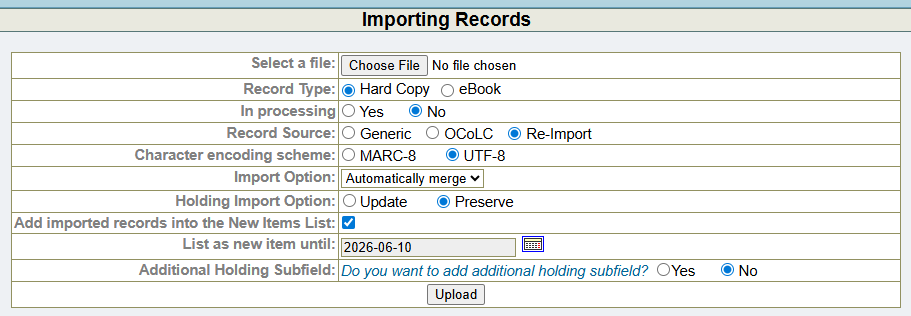
- Click on the Choose File… button and navigate to the MARC records.
- Under Record type, choose the appropriate option.
- Under Record source, choose Re-Import.
- Under Character encoding scheme, choose UTF-8.
- Under Import Option, choose Automatically merge.
- Under Holding Import Option, choose Preserve.
- Set the Lists and Additional Holdings Subfield options based upon your local policy.
- Click on the Upload button.

- If everything looks correct, click Accept to start the import.
- The upload will process. This may take several minutes. To check on the status of the process, click the Refresh button to refresh the Import page and the status will display “done” when complete. You may navigate away from this page while the processing is running and return to check the status later.
- After the import is done, check to see if there are any records in the Pending column. If the number is greater than zero, click on the number to begin processing the pending records. This process allows you to merge or import the records that OPALS couldn’t make a definitive determination on whether they should be merged into an existing record or imported as a new record.